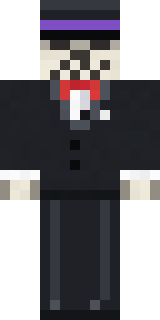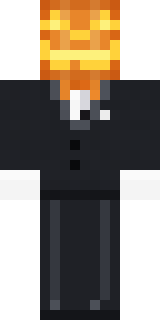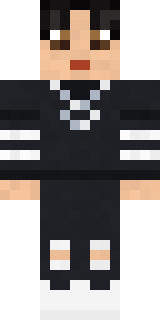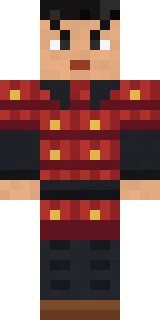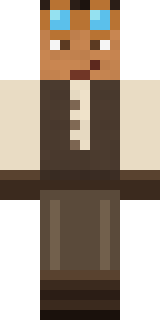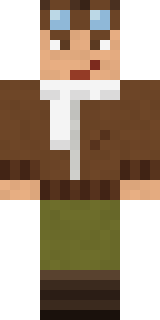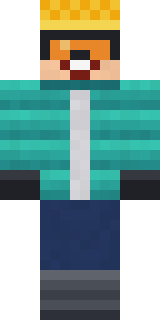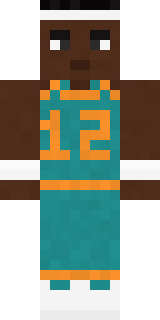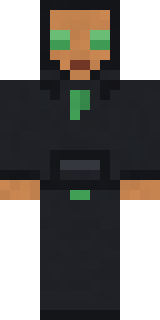
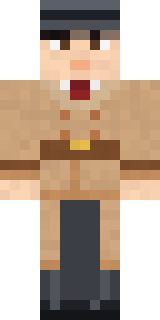
Noir Detective
Minecraft skin · Classic arms (4 pixels) · Java and Bedrock
By Build ItOfficial Build It skin
0 downloads0 likes1 views1 October 2026
Trench coat, fedora and a case that will not solve itself.
How to use this skin
Download it, then follow the steps for where you play.
Minecraft: Java Edition, in the Minecraft Launcher
- Open the Minecraft Launcher and pick Minecraft: Java Edition on the left.
- Open the Skins tab at the top and press New skin.
- Give it a name and choose the player model: Classic.
- Press Browse, pick the PNG you downloaded, then Save & Use.
- Start the game: you are wearing it, on every world and server.
Minecraft: Java Edition, on minecraft.net
- Go to minecraft.net and log in with your Microsoft account.
- Open your Profile and find the skin settings of Java Edition.
- Choose Classic, select the PNG file, and press Upload.
- Your new skin shows the next time you join a world.
Bedrock Edition: Windows, Android, iPhone, iPad, Chromebook
- Open Minecraft and press Dressing Room on the main menu (in newer versions, the character button next to your name, then Edit Character).
- Open the Classic Skins tab.
- Under Owned Skins, press Import, then Choose New Skin.
- Pick the PNG you downloaded (on a phone it is usually in Downloads or Files).
- When it asks, choose Classic, then confirm.
Xbox, PlayStation and Nintendo Switch
Consoles cannot import a skin file. There you can wear Character Creator items and skins from the Marketplace.
Some players set a skin in Bedrock on a phone or PC that is signed in to the same Microsoft account and see it on their console too. Mojang does not support that, so it may not work for you.